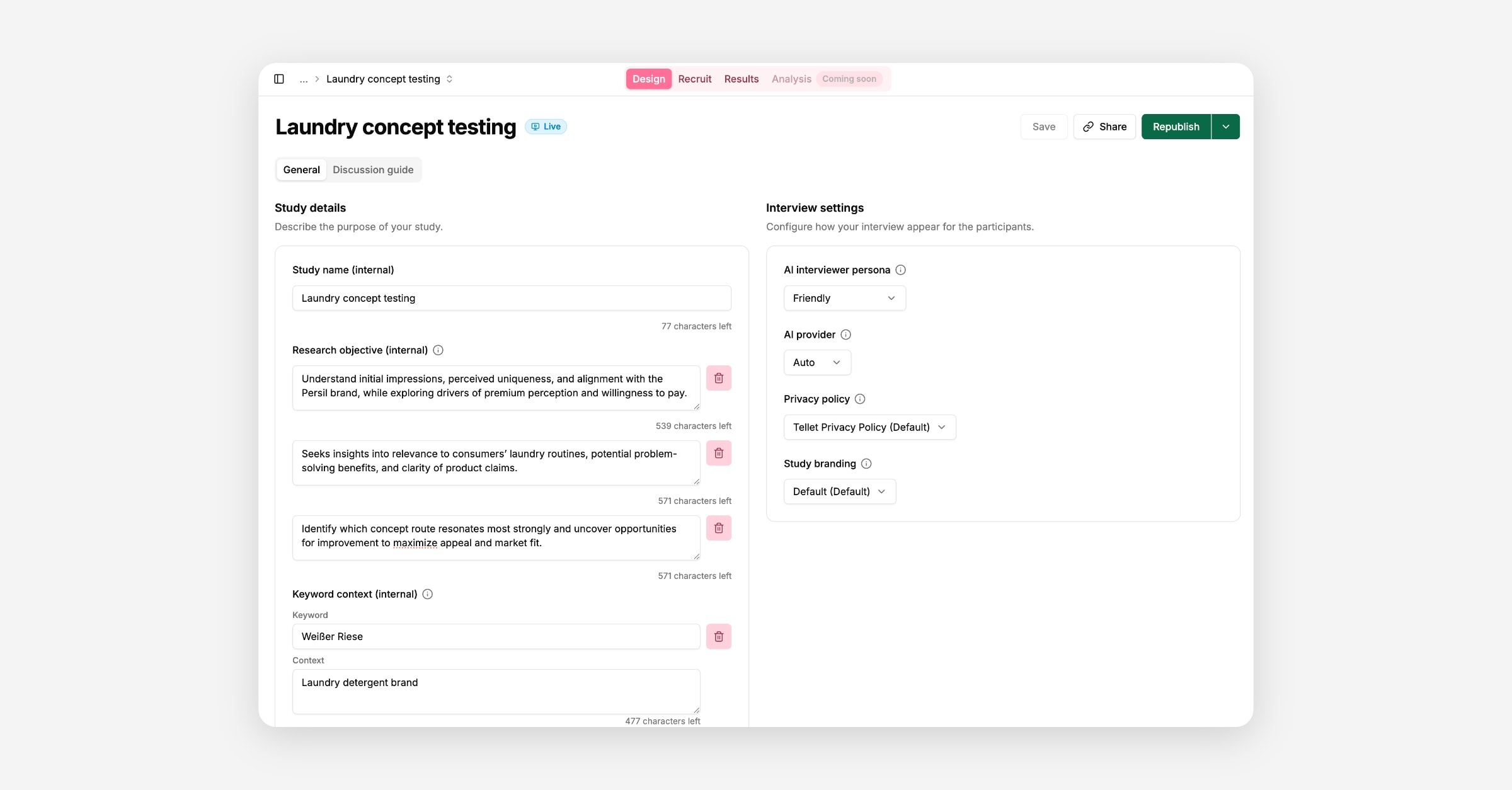
The settings for a study live on the Design → General tab. This is where you name your study, set its research objectives, choose languages, and configure how the AI interviewer behaves.
Study details
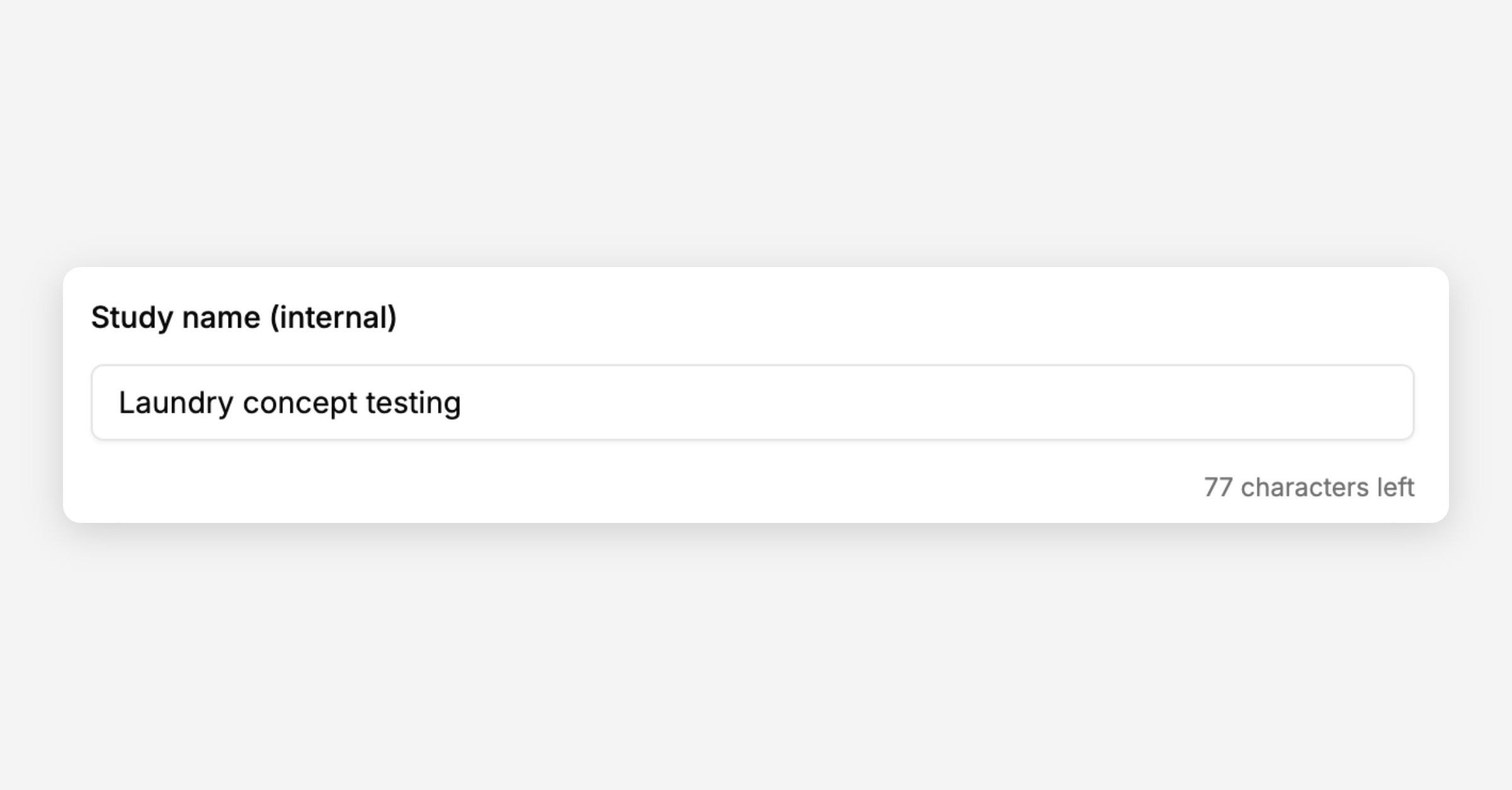
Study name (internal)
Required, up to 100 characters. This is for your own reference only; participants never see it.
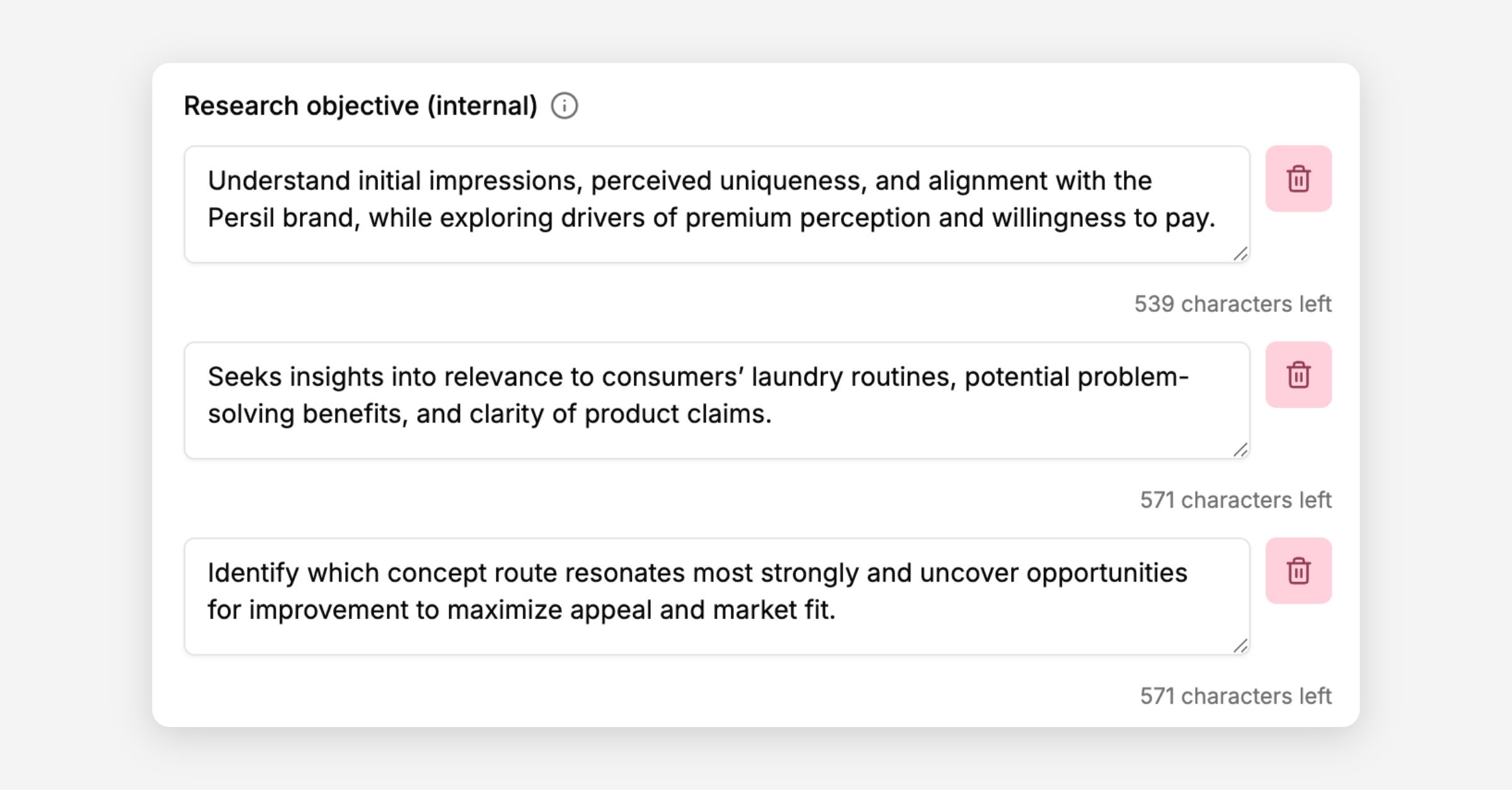
Research objective (internal)
One field, up to 1,500 characters. This is used to generate the study's thematic analysis, so it's worth being specific about what you want to learn.
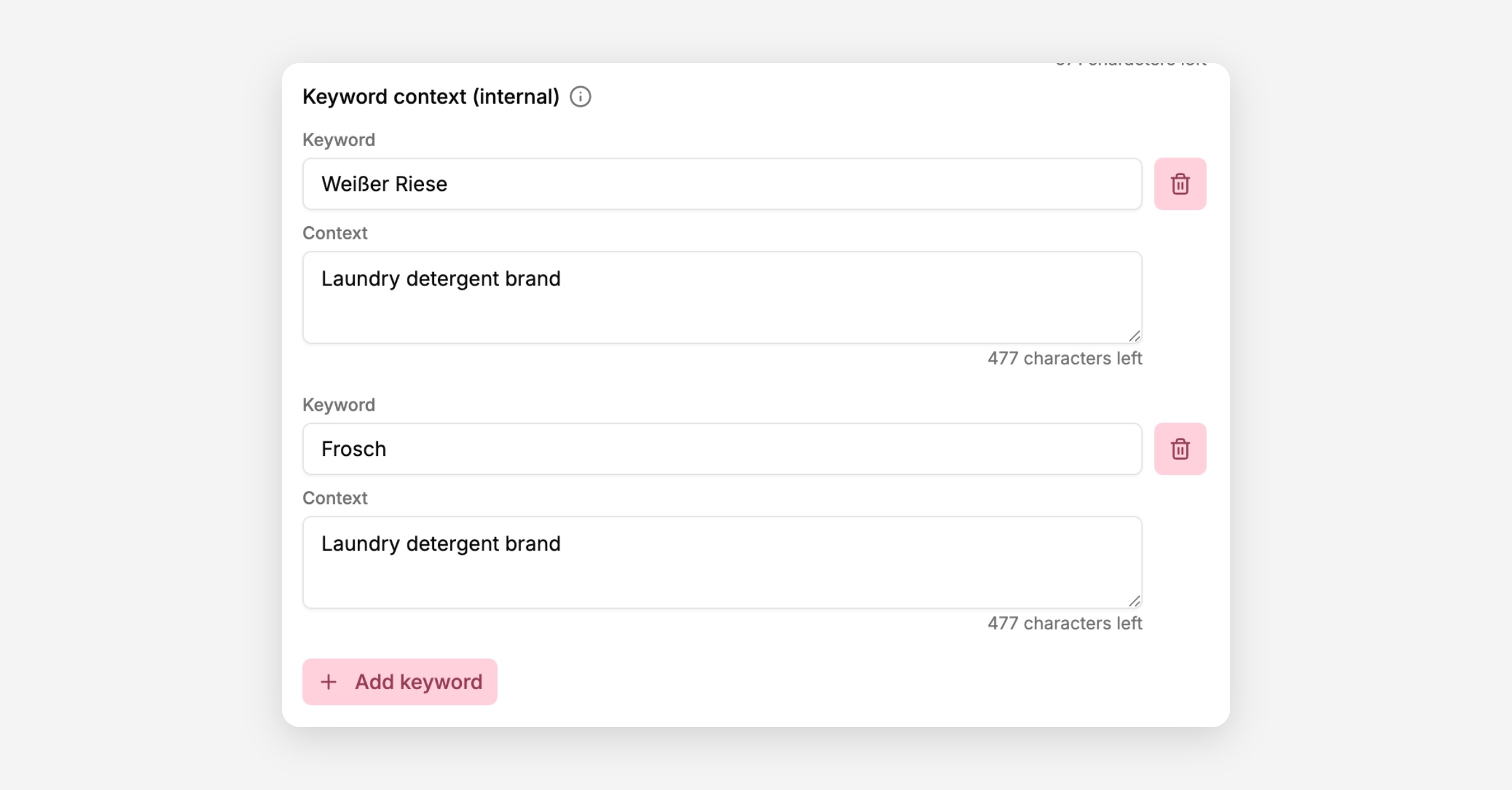
Keyword context (internal)
Up to 10 keyword/context pairs (keyword up to 100 characters, context up to 500 characters). Use this to guide the AI during the interview — for example, defining an acronym or product name specific to your study. Keywords you add here are never auto-translated.
Language settings
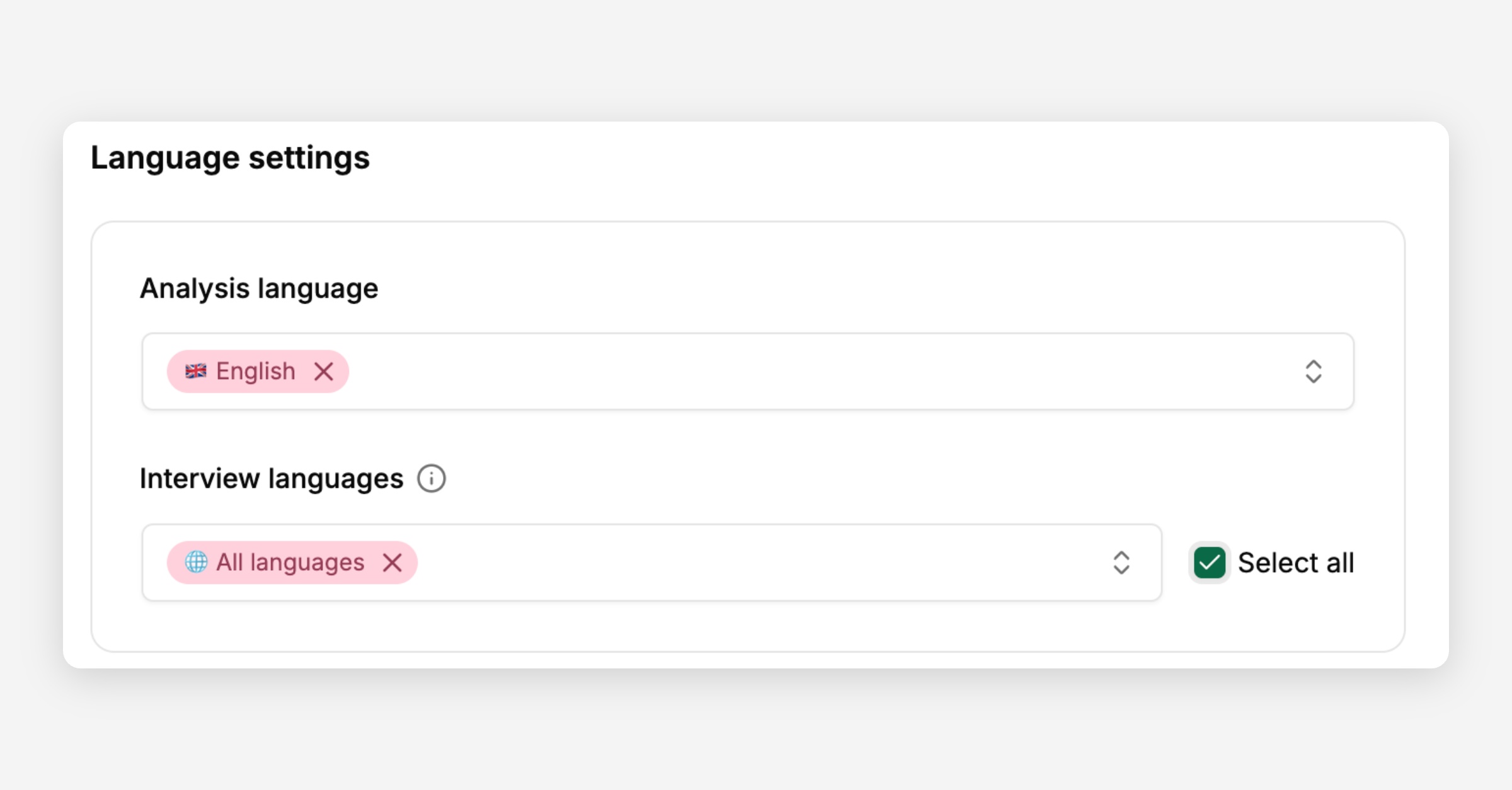
Analysis language
This is the language(s) your results and transcripts are shown in.
Interview languages
At least 1 language. These are the languages participants can choose from to take the interview in.
See the Languages & translations article for more on how these settings interact with what a participant actually sees.
Interview settings
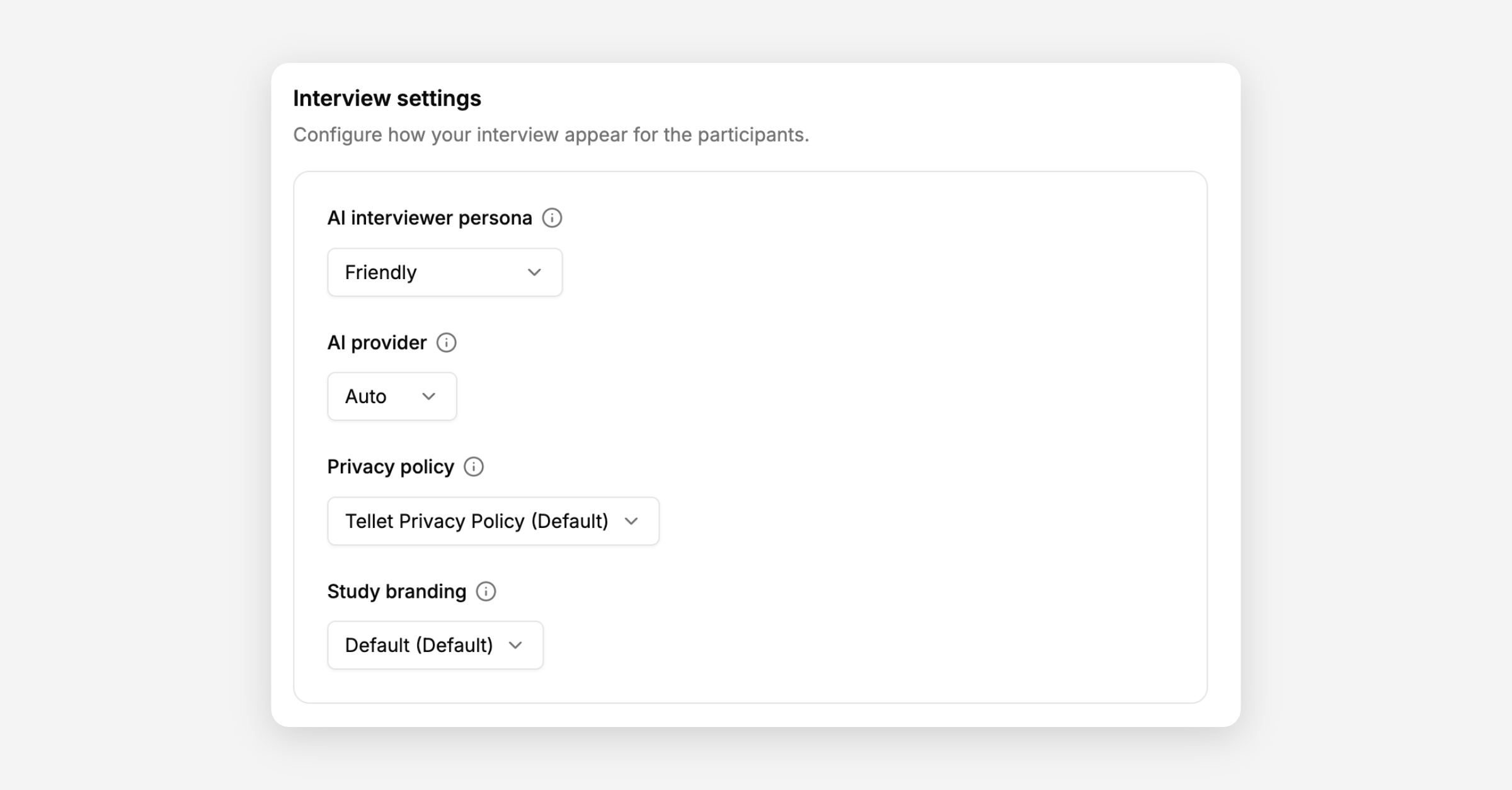
AI interviewer persona
Formal or Friendly. Sets the tone and style the AI interviewer uses with participants.
Formal persona is going to use a more neutral tone of voice and use formal pronouns when addressing the participant. Informal, on the other hand, has a more warm, encouraging tone of voice and will use informal pronouns where possible.
AI provider
OpenAI, Google, or Auto. This is the AI model family that conducts the interview. OpenAI is the default; choose Google when you need the AI to see participant video, not just hear audio. Auto uses OpenAI with Google as a backup.
Privacy policy
Choose from the privacy policy links configured for your organisation. If the one you need isn't listed, use the Manage privacy policies link to add it in your organisation settings (requires admin permissions).
Study branding
Choose from the branding profiles configured for your organisation. Study branding is preselected based on your org's default. Use Manage study branding to add or edit branding in your organisation settings (requires admin permissions).
Managing the study lifecycle
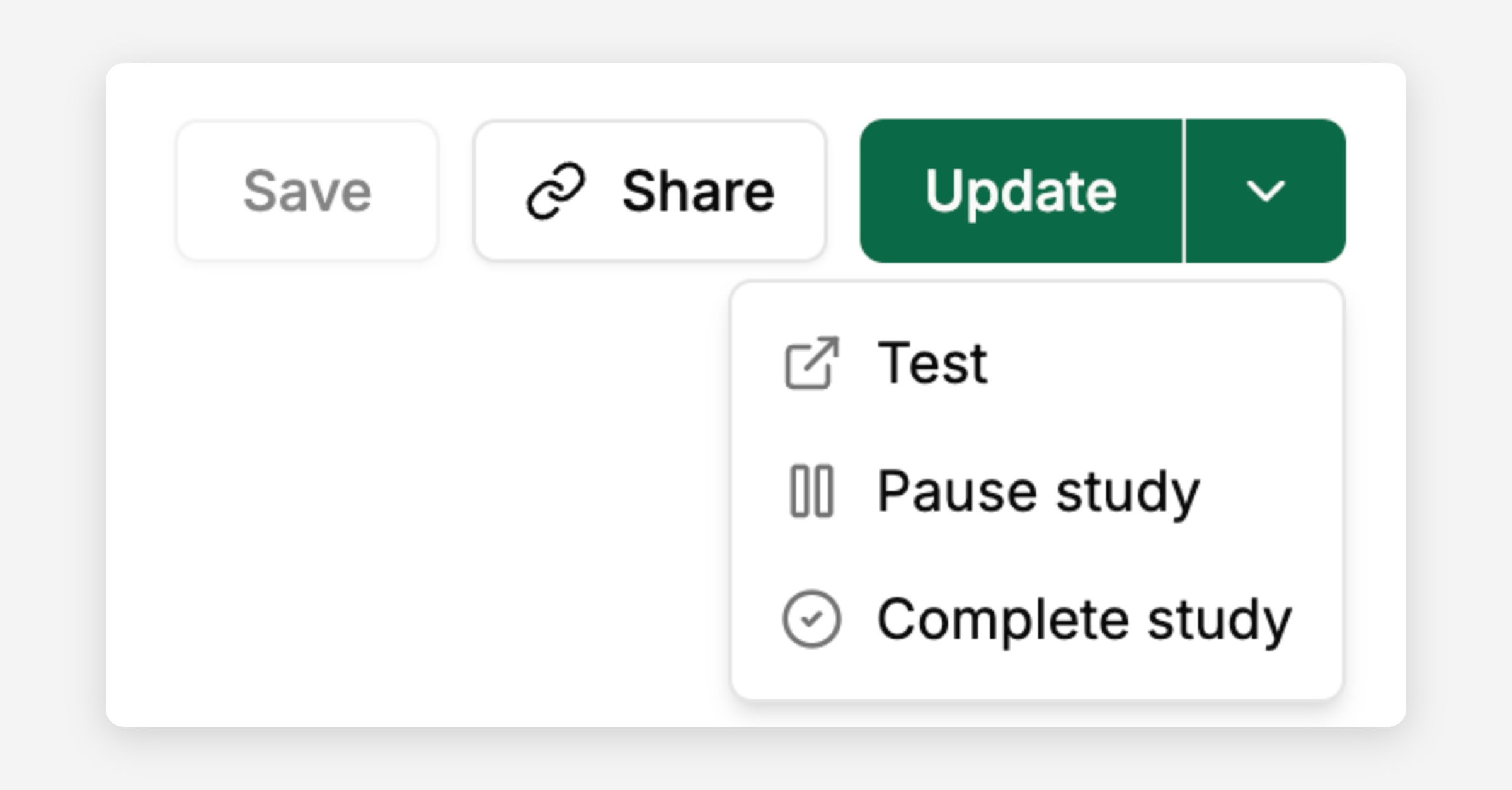
A few study-level actions live in the action bar at the top of the study, rather than in a settings form.
Test
Opens the live interview in a new tab in test mode, so you can try it yourself before sharing it.
Pause study
Makes the study unavailable to participants. If you're recruiting through a panel, remember to pause recruitment with your panel provider too.
Complete study
Makes the study unavailable to participants once you're done collecting responses.
Publish / Update / Republish
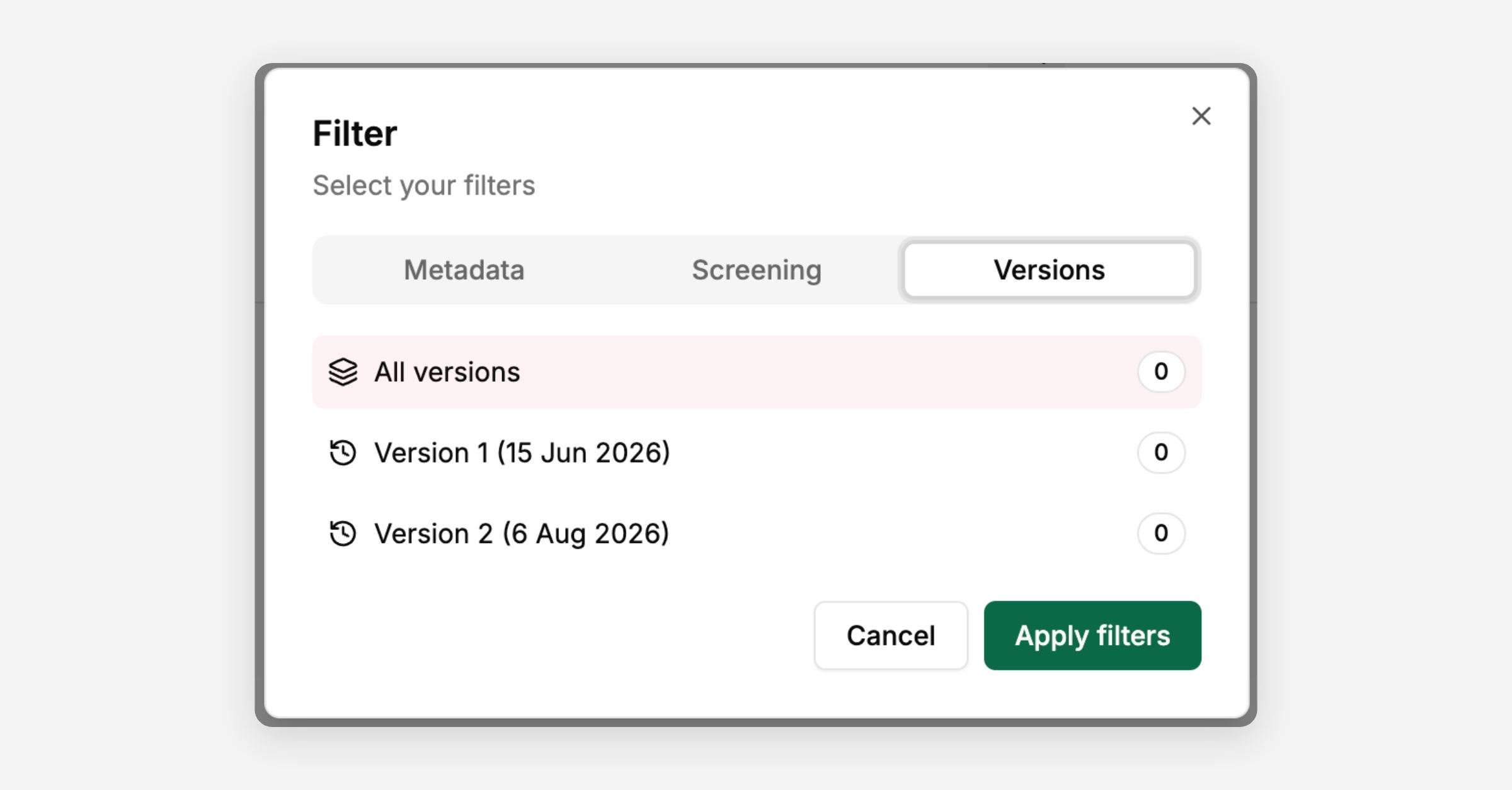
Publishes your study, or pushes changes to an already-published study. Republishing generates a new study and results version, so you can navigate between versions on the Results page.
Share
Share the public interview link with others in your organisation. This is not the link to the study but the link to the participant interview. Responses will be recorded.
Can I update the study after it’s published?
Yes, you can update the study at any time, even if it’s already published. If the changes are affecting the structure of the discussion guide (such as new question has been added, significantly changed or removed), we will create a new version of the study to preserve the integrity of the results. Otherwise, we will just update the study.
You will be be able to navigate between different versions in your Transcripts in Filters.